| Unique Visitors |
Powered By 
| Unique Visitors |
Over the last couple of weeks the debate about whether or not to enable Jumbo Frames has been coming up quite a bit. This has been largely driven by discussion around VSAN in vSphere 5.5 and other types of network based storage access. A couple of people have been questioning the wisdom of having “enable Jumbo Frames as a best practice” recommendation for VSAN or not, due to a perceived negligible benefit when compared to the perceived complexity involved in implementing it (I will drill into these concerns below). I was quick to point to various test results showing at least a 10% benefit in performance, including my previous articles Jumbo Frames on vSphere 5 and Jumbo Frames on vSphere 5 Update 1. However my previous testing was not for storage access, it was simply network performance. So I thought maybe there is a difference when you’re using NAS storage, or VSAN type storage over a 10G network, and maybe Jumbo Frames doesn’t make all that much difference in that scenario. So I thought I’d test some storage access scenarios over my 10G LAN in My Lab Environment to see if Jumbo Frames made any difference or not.
I’ve heard reports that some people have been testing VSAN and seen no noticeable performance improvement when using Jumbo Frames on the 10G networks between the hosts. Although I don’t have VSAN in my lab just yet my theory as to the reason for this is that the network is not the bottleneck with VSAN. Most of the storage access in a VSAN environment will be local, it’s only the replication traffic and traffic when data needs to be moved around that will go over the network between VSAN hosts. The latency introduced by the network in those cases would be negligible compared to the cost of accessing the local host storage. Then there is the argument that LRO/LSO on modern 10G NIC’s negates the benefit of Jumbo Frames. The thing is LSO only helps with outbound and LRO doesn’t deal entirely with the overheads associated with per packet processing of the inbound packets. At least Linux has LRO support whereas Windows doesn’t yet. VSAN storage traffic isn’t all that is going across the network.
Does any of this really matter when it comes to setting best practices? Not entirely. But to explain that, first we need to look at what best practices actually are. Let’s take a look at what the VCDX Boot Camp book by John Arrasjid, Ben Lin and Mostafa Kahlil, and my quote on page 20 of that book says about best practices.
“Use of best practices may apply for a majority of implementations, but these are not customer specific or applicable in all situations. A qualified design expert knows when to deviate from best practice while providing a justifiable and supportable solution” I go on to elaborate on that point by saying “Best practices are a baseline from which we work in the absence of specific requirements that would justify deviation. Knowing why it is a best practice is important so that you know where to create a new best practice specific to your design and customer.”
So what we can immediately take form the above is that best practices while beneficial to them majority of implementations may not be applicable in all situations. This is the case with Jumbo Frames as there will be a lot of dependencies. If the network or CPU is not the bottleneck then it’s unlikely Jumbo Frames by itself will be a silver bullet for your application or storage access performance issues. It will also depend on the switching infrastructure and NIC’s in use. But for the majority of situations Jumbo Frames could be beneficial, especially when using 10G or higher bandwidth network infrastructure. As you’ll see shortly from my test results Jumbo Frames improves performance significantly in the situations I tested in My Lab Environment.
Next we need to look at what the trade offs are. If I enable Jumbo Frames for VSAN or other types of traffic are there any downsides? Well firstly it’s got to be enabled from end to end in the network communication path in order for it to be effective. So that means the VM’s, VMKernel ports transmitting VSAN or vMotion traffic, the virtual switches, and the physical switches or routers need to be configured to accept Jumbo Frames. Why 10G plus equipment doesn’t come out of the factory configured to accept Jumbo Frames I don’t know. In any case the necessary configuration is a trivial exercise when setting up new infrastructure, but to retrofit existing network switches, routers and the virtual environment on a large scale if it wasn’t done originally can be a little harder and more complex. But in the context of 10G+ storage networks and vMotion networks, which are meant to be flat and closely connected, I would argue it isn’t that much trouble. But we must accept there is more to configure. This is one tradeoff.
But what if you enable it for only part of the network path or you make a mistake with the Jumbo Frames configuration? This is a very common concern or objection to enabling Jumbo Frames. In this case you’re going to get packets fragmented to the standard frame size, as if Jumbo Frames wasn’t enabled at all. But thanks to Path MTU Discovery that’s pretty much it. So you’re no worse off by setting Jumbo Frames than you would be if it were not set, so no harm done. Jumbo Frames will just not be used. Because really all configuring Jumbo Frames does is enable an upper limit for the Maximum Transmission Unit larger than the standard frame size (normally 1500B). It has no impact on the minimum size of a frame that is sent. If you do make a mistake troubleshooting where it’s gone wrong isn’t that difficult either with vSphere 5.1 and above as you can use the network health check or ping’s with varying TTL’s with the no fragment option (8972B packet size) to find out which part of the network path is incorrectly configured.
So from the above I would argue it’s reasonable to keep Jumbo Frames as a best practice recommendation when using Ethernet based storage access on 10G plus networks, even with VSAN and other technologies that behave similarly. It won’t cause any harm, and in many situations it will be of benefit. As bandwidth scales Jumbo Frames may provide even more benefit, depending on how NIC’s and switches develop. But just how much benefit? Is it really worth it? Now it’s time to review my test setup and my test results.
For my testing I used two of my ESXi 5.0 Update 2 Hosts with the following config: Dell T710’s with 2 x X5650 CPU’s (6 cores per socket, 2.66Ghz), 72GB RAM, Intel 520-T2 10G NIC. There were no advanced settings (such as interrupt coalescing) changed on the hosts with regards to the 10G NIC’s. The Hosts NIC’s are at the default settings. Both hosts were connected to a Dell 8024 10G switch. The 8024 switch is configured for Jumbo Frames (MTU 9216), the vDS that my test VM’s are connected to is also configured to allow Jumbo Frames (9000). So during the tests I was changing the endpoints to either accept or not accept Jumbo Frames. For the IO Load Generator and Storage Server I used 2 x VM’s, one on each host, configured with 6 vCPU’s and 8 GB RAM. The VM’s were configured with VMXNET3 vNIC’s and Interrupt Moderation was disabled on the vNIC driver within the OS. The VM’s used PVSCSI vSCSI adapters with the default settings.
Each VM was on a different host during the testing. To drive the storage load I used IOMeter. The storage server had a single thin VMDK backed by either a Micron or Fusion-io Flash PCIe card and this VMDK. The IO workload pattern was 100% sequential read with 32 outstanding IO’s. I only varied the IO size and whether or not Jumbo Frames were used during each test run, as the test were primarily to see the impact of the network configuration and not of different storage IO patterns. I took multiple test runs and the results are the lowest of the runs for each IO size. All measurements are taken from the IOMeter Logs on the IO Load Generator VM.
Here are my results, your milage may vary:

You can see from the results as the bandwidth of the 10G NIC’s reaches saturation point (64K IO Size) there is almost no difference between Jumbo and Non-Jumbo in terms of throughput and latency. However up until that point there is between a 9% and 23% improvement in performance due to Jumbo Frames on IOPS (and throughput), and between 9% to 32% improvement in latency. I also found that the CPU cost using Jumbo Frames was lower than with Non-Jumbo. To achieve the same throughput and latency in the 64K IO Size test the client used 40% more CPU with Non-Jumbo than with Jumbo (13.9% CPU Utilization Non-Jumbo vs 9.9% CPU utilization with Jumbo). However the offload capabilities of the 10G NIC did equalise the CPU cost for the Non-Jumbo Tests. Even during very high packet and throughput rate of the Non-Jumbo tests the CPU utilization did not exceed 16% on the IO Load Generator VM.
One of my readers was also kind enough to supply some test results comparing Jumbo Frames to Non-Jumbo Frames for NFS based storage on a Cisco 2020 10G infrastructure. Here is the graph showing a consistent 11% performance improvement in terms of IOPS for their testing. 8204 is the Non-Jumbo Tests and 8205 is the Jumbo tests.

In addition to enhanced IOPS the test results showed that in the case of using Jumbo Frames IO’s were serviced 85% within 500us, vs 65% within 500us for Non-Jumbo. The CPU utilization on the NFS filer was 60% during the Jumbo test vs 80% during the Non-Jumbo Test. These tests demonstrate higher IO throughput, lower latency and lower CPU utilization as the majority of my tests did. This is further evidence to consider using Jumbo Frames and in support of it being a best practice for Ethernet based storage and high throughput 10G plus networks.
Final Word
Based on my test results and findings above I would recommend Jumbo Frames is enabled on 10G + Networks, especially when using Ethernet based storage access, with vMotion, and with other high throughput applications (Oracle RAC Interconnects). This includes when using technologies like VSAN. I see no harm in this being recommended as a best practice provided customers and partners understand what best practices are and also understand Jumbo Frames. If you’re designing a new infrastructure around NAS, VSAN or other Ethernet based storage access then there is very little overhead in including Jumbo Frames up front. The applicability in my view of Jumbo Frames only going to increase with the adoption of network overlay or network virtualization technology such as with VMware NSX, VXLAN etc. So even if you think you can get away without have Jumbo Frames now, it’s very likely to be in your future.
I would be interested in your feedback and also interested in any other test results using Jumbo Frames on 10G or higher bandwidth networks and with NAS and VSAN type storage environments.
—
This post first appeared on the Long White Virtual Clouds blog at longwhiteclouds.com, by Michael Webster +. Copyright © 2013 – IT Solutions 2000 Ltd and Michael Webster +. All rights reserved. Not to be reproduced for commercial purposes without written permission.
With all of the excitement around vSphere 5.1 last year most of us had forgotten to mention the little 2012 Christmas present that VMware left for customers that are still running vSphere 5.0. What I’m referring to is vSphere 5.0 Update 2. Now that Partner Exchange in Las Vegas is over I’ve had time to revisit this release and the importance of it for customers running business critical apps.
There are a number of important defect fixes and enhancements in vSphere 5.0 Update 2 and vCenter 5.0 Update 2. I won’t go through all of them. But I do recommend you read the release notes: ESXi 5.0 Update 2 Release Notes, vCenter 5.0 Update 2 Release Notes, vCenter Update Manager 5.0 Update 2 Release Notes.
The top 10 fixes or enhancement highlights (in no particular order) for the vSphere 5.o Update 2 release from my perspective are as follows:
1. Fixed: Long running vMotion operations might result in unicast flooding. When using the multiple-NIC vMotion feature with vSphere 5, if vMotion operations continue for a long time, unicast flooding is observed on all interfaces of the physical switch. If the vMotion takes longer than the MAC address table ageing-time, the source and destination host start receiving high amounts of network traffic. (MW: If you have Monster VM’s this one is particularly important as you need all the Multi-NIC vMotion Bandwidth you can get to ensure quickest migration and maintenance mode times. This fixes the problem I wrote about in my article The Good, The Great, and the Gotcha with Multi-NIC vMotion in vSphere 5 and removes the need for the Workaround for Multi-NIC vMotion Unicast Flooding in vSphere 5).
2. Fixed: Large number of UDP packets are dropped when you use the VMXNET3 adapter. Large number of UDP packets are dropped when you use the VMXNET3 adapter with a Linux guest operating system installed on an ESXi 5.0 host.
3. Support for Windows Server 2012, Windows 8, RHEL 6.2 and RHEL 6.3 customization.
4. Fixed: vCenter Server might stop responding when there is excess memory consumption. When a client connects to vCenter Server, and if it creates an extra PropertyCollector using the vmodl.query.PropertyCollector.createPropertyCollector vCenter API, vCenter will not deallocate the memory for this extra PropertyCollector and its associated objects even after the client logs out. This will result in vCenter Server memory leak. When vCenter Server memory utilization level exceeds 10GB, vCenter Server goes out of memory and stops responding.
5. Fixed: Intermediate certificate is unable to configure and load in vCenter Server 5.0. In vCenter Server, after installing the intermediate certificate chain, the following security warning is displayed every time you try to log in – “Invalid certificate”.
6. Fixed: The network bandwidth is not shared fairly among virtual machines of a network resource pool. The network bandwidth is not allocated fairly to all the virtual machines of a network resource pool due to limitations in the current implementation.
7. Fixed: When you disable coalescing on ESXi, the host fails with a purple screen. In ESXi, when VMXNET3 is used as vNIC in some virtual machines and you turn off packet coalescing, the ESXi host might fail with a purple screen as the virtual machine is booting up.
8. Fixed: Adding a new hard disk to a virtual machine that resides on a Storage DRS enabled datastore cluster might result in Insufficient Disk Space error. When you add a virtual disk to a virtual machine that resides on a Storage DRS enabled datastore, if the size of the virtual disk is greater than the free space available in the datastore, SDRS might migrate another virtual machine out of the datastore to allow sufficient free space for adding the virtual disk. The Storage vMotion operation completes but the subsequent addition of virtual disk to the virtual machine might fail and an error message similar to the following might be displayed: Insufficient Disk Space.
9. Fixed: Applying a host profile in vCenter Server 5.0 fails with the error. A general system error occurred: In vCenter Server, when you apply a host profile in vCenter Server 5.0 it fails with the following error – “A general system error occurred”.
10. ESXi 5.0 host fails due to a world slot memory leak. When the ESXi host attempts to create a world group heap without releasing the memory associated with world slot, the process fails due to a world slot memory leak.
Note: If you’re upgrading from vSphere 4.x and you made use of the VMware VMI Paravirtualization Interface that you will need to review VMware KB 1013842. vSphere 4.1 was the last release to support the VMI paravirtualiztion interface. I know I have at least one large customer with hundreds of VM’s in this category.
Final Word
If you’re already on vSphere 5.0 it is very easy to upgrade to vSphere 5.0 Update 2 using vCenter Update Manager. I would highly recommend you do the upgrade, of course following due process and having it go through your dev / test environments first prior to product. But the benefits of the upgrade are very clear. Especially for environments that are running Business Critical Applications such as Oracle, SQL Server, SAP, Exchange, and other major enterprise applications. As always feedback is welcomed.
—
This post first appeared on the Long White Virtual Clouds blog at longwhiteclouds.com, by Michael Webster +. Copyright © 2013 – IT Solutions 2000 Ltd and Michael Webster +. All rights reserved. Not to be reproduced for commercial purposes without written permission.
Some time ago I wrote about the IO Blazing Datastore Performance with Fusion-io that I was able to achieve with a single VM, connected to a single VMFS volume, and using thin provisioned VMDK’s. Since then a new version of ESXi 5.0 has been released (U2) and some new drivers and firmware have come out for Fusion-io. I was provided an additional Fusion-io ioDrive1 card to go along side the ioDrive2 (both MLC based), and Micron sent me one of their PCIe cards to test (SLC based). So I thought I’d reset the baseline benchmarks with a single VM utilizing all of the hardware I’ve got and see what performance I could get. I was suitably impressed with Max IOPS > 200K and Max throughput >3GB/s in different tests (see graphs below). This baseline will feed into further testing of ioTurbine for Oracle and MS SQL server, which I will write about once it’s done.
Firstly thanks to Bruce Clarke, Simon Williams and Sergey Omelaenko from Fusion-io for arranging the Fusion-io cards (ioDrive1 640GB and ioDrive2 1.2TB) and to Jared Hulbert from Micron for arranging the Micron 320h card (SLC version) and Dave Edwards at Micron for the experimental drivers and setup advice.
Disclosure: Although Fusion-io provided the two ioDrive cards and Micron provided a 320h SLC card on loan for me to test they are not paying for this article and there is absolutely no commercial relationship between us at this time. The opinions in this article are solely mine and based on the test results from the tests I conducted. Due to the Fusion-io ioDrive cards being MLC based and the Micron card being SLC based the testing could be considered an apples to oranges comparison. SLC performance in general is far higher than MLC at a considerable price delta also.
As with the previous testing I used two of the Dell T710 Westmere X5650 (2 x 6 Core @ 2.66GHz) based systems from My Lab Environment, one with 1 x ioDrive2 1.2TB and 1 x ioDrive1 640GB Fusion-io cards installed and the other with the Micron 320h, both systems have the cards installed in 8X Gen2 PCIe slots. I configured the cards as a standard VMFS5 datastore via vCenter with Storage IO Control disabled. I installed the IO Memory Fusion-io VSL driver for the Fusion-io host, and the latest experimental driver I was provided on the host with the Micron card. The hosts are running the latest patch version of ESXi 5.0 U2 build 914586, vCenter is version 5.0 U2. Drivers are also available for vSphere 5.1 for the Fusion-io and Micron cards to be used as a datastore and I will retest at a later date.
I used a single Windows 2008 R2 64bit VM and a single Suse Linux Enterprise Server 11 SP1 VM for the tests. Only one VM at a time was active on the datastore. Each VM was configured with 8GB RAM, 6 vCPU’s, and 4 SCSI Controllers, one for the OS vmdk and the others for the IO Test VMDK’s as depicted in the diagram below. The Windows 2008 R2 VM used LSI Logic SAS for it’s OS disk and PVSCSI for the IO Test disks, whereas the SLES VM used PVSCSI for all disks. IO Load was only placed on the IO Test disks during my testing. The testing of the 2 x Fusion-io ioDrive cards was done by splitting the VMDK’s evenly over both cards to get the combined performance (second image below).
Micron Test VM Configuration:

2 x Fusion-io Test VM Configuration:

Notice in the diagram above I’m using Thin Provisioning for all of the VMDK’s and all of this is going through a single VMFS5 datastore for the Micron or two VMFS datastores in the case of the Fusion-io tests. So if anyone tries to tell you there is a performance issue with Thin Provisioning or VMFS datastores you can point them to this example.
As with the previous tests to generate the IO load I used the VMware fling from VMware Labs IOBlazer. It was very easy to deploy and use and offers a full range of the normal IO testing capabilities you expect, with the additional advantage of being able to replay IO patterns recorded using vscsistats. In my testing I used standard random and sequential read and write IO patterns of varying sizes. In each test I used 12 worker threads (one for each disk). With the exception of the 1M IO Size test where I used 1 outstanding IO, I used 8 outstanding IO’s per worker thread. I did this to limit the amount of IO queueing in the vSphere kernel due to the very small queue depth on the Fusion-io card (32 OIO’s), which wasn’t a problem though on the Micron (255 OIO’s). As a result queuing in the kernel was kept to a minimum to ensure the best possible latency results. For the Micron tests I used a 4K alignment offset to get the best performance, when using 512B alignment the performance wasn’t as good, however this wasn’t a problem with the Fusion-io cards.
Disclaimer
As with the previous tests the IO patterns I tested are not application realistic and do not demonstrate the mix of IO patterns that you would normally expect to see in a real production environment with multiple VM’s or different types sharing a datastore. The tests are for the purpose of demonstrating the limits of the different PCIe Flash cards when used at peak performance with four different fixed IO patterns. I tested 100% read 100% random, 0% read 100% random, 100% read 0% random, and 0% read 0% random. In real production workloads (shared datastore different VM types) you would not normally see this type of IO pattern, but rather a wide variety of randomness, read and write, and also different IO sizes. Except in the cases where one VM has multiple datastores or devices connected to it (big Oracle or SQL databases), in which case some of these patterns may be realistic. So consider the results at the top end of the scale and your milage may vary. Due to the technical differences between the Fusion-io based MLC cards and the Micron based SLC card this isn’t an apples for apples comparison. The tests were limited to short durations (60 seconds), so there was no opportunity to determine how the different cards perform with regard to endurance. Also not all of the cards capacity was used or overwritten during the tests.
Random Read IOPS and Latency

Random Read Throughput

Random Write IOPS and Latency

Random Write Throughput

Sequential Read IOPS and Latency

Sequential Read Throughput

Sequential Write IOPS and Latency

Sequential Write Throughput

Conclusion
Given the differences in technology used between the Fusion-io and Micron PCIe Flash cards this isn’t a valid head to head comparison, it is very much apples to oranges. But what the testing shows is good performance from a single VM. It also shows the capabilities of the vSphere 5.0 hypervisor, especially given the high throughput and low latencies that were achieved. These tests show that vSphere is not an inhibitor to good performance when combined with good hardware.
In all of the tests with the exception of random write performance the single Micron 320h SLC exceeded the performance of the combined Fusion-io ioDrive1 and ioDrive2 cards from the single VM. This demonstrates the performance difference between MLC and SLC more than anything else, and great performance from the hypervisor. Latency was consistently below 1ms for both Fusion-io and Micron up to 16KB – 32KB IO size, at which point throughput saturation was reached. Maximum IOPS of over 200K for the single VM on the Micron card is impressive, especially at < 1ms latency. As is the maximum throughput of over 3GB/s read performance. The Fusion-io cards performed very well during random write tests, and read throughput of 2GB/s is very good. Fusion-io’s read and write IOPS > 100K is also very good.
The only queue depth option on the Fusion-io cards was 32, whereas on the Micron card the queue depth was 255. The difference in queue depth makes a big difference to performance and latency as IO workloads increase, with a larger queue depth the IO’s are not queued up in the kernel and are sent straight to the driver. This assumes the devices can handle the additional IO’s, which PCIe Flash Devices generally can. Don’t try adjusting the queue depth with your SAN arrays without very careful consideration as it can have a negative impact.
Unfortunately the Micron card doesn’t seem to work well at all with the 512B IO size sequential write IO pattern. Though this would be fairly rare in a real production environment where most workload patterns would be random and with larger IO sizes. During testing I also found that write performance suffers greatly on the Micron card when not using 4K aligned writes, as is the case with some other SSD’s. This makes it very important to ensure proper IO alignment at VMFS and Guest OS layer. This is not a problem that the Fusion-io cards suffer from as they handle natively 512B.
Raw throughput and IOPS aren’t the only consideration when it comes to PCIe Flash devices for all workloads. The ability to use the local PCIe Flash Device as near-line memory or cache as in the case of Fusion-io with ioTurbine is a major advantage for business critical applications (such as Oracle and MS SQL databases) and can increase consolidation ratios and therefore ROI without sacrificing performance. Also when using the local PCIe flash as cache in the case of a device failure there won’t be any data loss as writes are committed to the SAN or primary storage, so the only impact is reduced performance.
For some workloads that would be fine on a stand along VMFS datastore, such as floating pool VDI workloads both Fusion-io and Micron are credible choices. Both would also perform well when configured to swap to host cache. The Micron card clearly has an advantage in terms of raw throughput and especially with read performance due to it using SLC technology. One drawback the PCIe flash card models share is that they can’t be configured for RAID in hardware or in vSphere itself. So if you’re going to be using them as a VMFS datastore and storing data on them permanently you have a risk of data loss if the card fails. You should consider application level data protection if using the cards as a datastore, or use them for high performance data where the impact of data loss is low.
In summary all these tests also show us that the VMware vSphere hypervisor is not a bottleneck to storage performance, that VMFS is not a bottleneck to storage performance, and you can get stellar performance even when using thin provisioned VMDK’s. Remembering that none of the cards tested support VAAI the performance is excellent. If you need more performance just add more PCIe flash cards. During the tests the CPU utilization on the VM’s didn’t exceed 80% of the 6 vCPUs, so it’s clear the VM could have sustained higher throughput if the physical hardware could have supported it, and I could have always added more vCPU’s. VMware vSphere definitely is a great platform to run your business critical and high performance applications. I hope you found this interesting and useful and would welcome any feedback as always.
—
This post first appeared on the Long White Virtual Clouds blog at longwhiteclouds.com, by Michael Webster +. Copyright © 2013 – IT Solutions 2000 Ltd and Michael Webster +. All rights reserved. Not to be reproduced for commercial purposes without written permission.
Some time ago I wrote an article about EMC’s Blueprint for Successful Large Scale Oracle Virtualization on vSphere. Now Cisco IT has published a similar whitepaper and study after having virtualized a large number of their corporate Oracle databases on top of their Unified Computing System (UCS) platform. The results are quite impressive in my opinion and you may be able to learn a lot from their effort. The difference here is that Cisco tested with NFS and D-NFS, not Fibre Channel (as in the EMC case study).
Cisco’s tests showed performance up to more than 2000 TPS and over 74K IOPS from relatively small CPU and Memory footprint 4 node Oracle RAC 11g cluster using D-NFS. Performance of standalone systems was also good at 33K IOPS using D-NFS. One of the interesting takeaways I got from the Cisco article is that their testing showed near native performance when their databases were virtualized.
For all the details you should read the full study by Cisco – Virtualized Oracle Database on UCS. A PDF version of the whitepaper is linked from their article.
Final Word
Projects such as the ones I have written about from EMC, Cisco and others are good evidence that you can successfully virtualize all types of Oracle databases on VMware vSphere. It does take a careful, disciplined and methodical approach that considers all the requirements, constraints, risks and assumptions. But this is no different than if you were deploying these types of critical systems non-virtualized. The business benefits that can be achieved, based on the Cisco and EMC case studies (and my own direct personal experience on these projects with my customers), are compelling. If you’d like to look at some more resources to help you to get started on the journey to virtualizing your Oracle databases you might like to check out the rest of the articles on my Oracle Page.
—
This post first appeared on the Long White Virtual Clouds blog at longwhiteclouds.com, by Michael Webster +. Copyright © 2013 – IT Solutions 2000 Ltd and Michael Webster +. All rights reserved. Not to be reproduced for commercial purposes without written permission.
I recently noticed VMware KB that talks about vSphere 5.x hosts may fail to mount an ATS-Only VMFS Datastore on some storage arrays.
VMware KB 2006858 – “ESXi 5.x hosts fail to mount VMFS5 volumes that are formatted with ATS-only capabilities” warns of this problem and lists some storage arrays where the problem is known to occur. It should be noted that the list of arrays that could see this problem is not exhaustive and other arrays could also be impacted.
ATS or Atomic Test and Set is the locking mechanism used when VAAI (vSphere API for Array Integration) capability is enabled. This allows your VMware environment to support many more VM’s per datastore than is possible when using standard SCSI reservations. Given the impact that this may have on affected environments it would pay to review the KB and also check with your storage vendor that your array fully supports VAAI. The alternative or suggested workaround is to disable VAAI across your clusters, which may impact performance and scalability.
—
This post first appeared on the Long White Virtual Clouds blog at longwhiteclouds.com, by Michael Webster +. Copyright © 2012 – IT Solutions 2000 Ltd and Michael Webster +. All rights reserved. Not to be reproduced for commercial purposes without written permission.
Hypervisor competition is really starting to heat up. VMware just released vSphere 5.1 and Microsoft has recently released Windows Server 2012 and the new version of Hyper-V. A significant new feature available now in Hyper-V / Windows 2012 is a new disk format VHDX, which has a maximum size of 64TB. With the new filesystem in Windows Server 2012 (ReFS) the maximum volume size increases to 256TB ( NTFS was limited to 16TB @ 4K cluster size). So how does vSphere 5 and 5.1 compare and what are the key considerations and gotchas? What are the implications for business critical applications? Read on to find out.
Before we get started I’d like to say this article isn’t going to cover performance of large volumes. But rather the argument for supporting larger than 2TB individual virtual disks and large volumes. There are many considerations around performance, and I will cover some of the implications when you start to scale up volume size, but for particular performance design considerations I’d like to recommend you read my article titled Storage Sizing Considerations when Virtualizing Business Critical Applications.
The Case for Larger than 2TB Virtual Disks
Recently I have been having an interesting debate with some of my VCDX peers on the merits and reasons for having larger than 2TB virtual disk support in vSphere. As of vSphere 5 VMware supports 64TB VMFS5 datastores, and 64TB Physical Mode (Pass-through) Raw Device Maps (RDM’s), but the largest single VMDK file supported on a VMFS5 volume is still 2TB-512b (hereon after referred to as 2TB). The same 2TB limit applies to virtual mode RDMs also. In this debate I’ve been suggesting that for now “most” applications can be supported with the 2TB virtual disk limit. If larger than 2TB volumes are required for a VM that is very easily accommodated with in guest volume managers and device concatenation of multiple 2TB disks, or using an alternative to VMFS. However realistically this can only go so far. I plan to cover both the pros and the cons as I see them.
Pros:
Cons:
In my opinion the arguments are pretty even. But as I always err on the side of performance, and I think having more devices of a smaller size in a lot of cases is a better option as this gives you far more access to more queues and more parallel IO channels. However this is only relevant for some applications, mostly OLTP and messaging type applications. File servers, data warehousing, big data and the like may well benefit greatly from larger volume sizes, and it would make those applications significantly easier to manage. But the requirements will all be driven by the applications and at the moment I only see a very small minority of workloads require storage capacities that would justify very large individual SCSI devices and where the performance tradeoffs from an IO parallelism perspective are acceptable. Most of those corner cases have a suitable alternative for now (discussed below). I agree with my friend Alastair Cooke that I don’t want hypervisor limitations dictating my designs. Yet all designs have constraints we have to work within. Alastair has posted a good article on this topic in response to this titled VM Disks Greater Than 2TB and I recommend you read it.
[Updated 04/09/2013] The good news is as of vSphere 5.5 we have support for 62TB VMDK’s, so you are pretty much free to choose whichever size VMDK you like up to this limit provided you’re running VMFS 5 and vSphere 5.5.
Options for Larger than 2TB Volumes
So if you’ve looked at the requirements for your application and you decide that you need a volume larger than 2TB, what are your options with vSphere 5.x?
You can’t evaluate the alternatives in isolation and to be fair they are workarounds that you wouldn’t even have to consider if larger than 2TB VMDK’s were possible. Physical Mode RDM’s in particular have operational implications, especially as you can’t use hypervisor snapshots, cloning, and no backup API integration, just to name a few. So any alternative you choose needs to be thoroughly considered.
The Gotcha with VMFS
If you are going to have databases or systems with large disk footprints (and have multiple per host) you may need to modify the ESXi VMFS Heap Size by changing the advanced setting VMFS3.MaxHeapSizeMB. Review KB 1004424, Jason Boche’s article Monster VMs & ESX(i) Heap Size: Trouble In Storage Paradise and Virtual Kenneth’s article VMFS3 Heap Size. VMFS5 was limited to a maximum of 25TB of virtual disks open per host (Yes per host). This has increased form when I first published this article as a result of ESXi 5.0 patch ESXi500-201303401-BG. With a old default setting allowing only 8TB of VMDK’s to be open per host, the new default is increased to 60TB per host once you’ve applied the latest patch. This means even if it is acceptable to you for a single VM to have multiple virtual disks of 2TB and using in guest volume managers you would not be able to configure or open more than 60TB total (up from 25TB prior to ESXi patch ESXi500-201303401-BG) maximum on a single host (was 32TB with VMFS3). This is why the limit of 120TB per VM on VMFS is at this point purely theoretical.
If you want to work around this limitation you will need to adopt option 1 (on NFS Datastore Only), 2, 3 or 4 above or use virtual/physical mode RDMs. The reason is this limit is purely with VMFS and doesn’t impact RDM’s (physical or virtual), VMDK’s on an NFS Datastore, or in guest iSCSI or NFS.
[Updated 20/09/2012] A great example where it would be good to be able to support > 25TB VMDK’s per host and > 2TB per VMDK is where a customer has a requirement such as virtualizing 20 x 4TB File Servers. Each fileserver may not need much in the way or RAM or CPU, but does need a decent amount of storage. In theory these 20 VM’s could easily be consolidated on a single host (although wouldn’t be for availability requirements), but because the VMFS limitation this is not possible, and due to the limit of 2TB per VMDK limit you will require a minimum of 2 VMDK’s per VM. It may be more convenient to have a single 4TB VMDK for these types of servers. One option is to design for a consolidation ration of 5:1 and size the physical hosts accordingly, making sure to increase the default VMFS heap size. However this would introduce additional operational costs and effort. This brings us back to option 2, 3 and 4 above again. In this case vRDM may be a better option than pRDM even with the 2TB limit as it allows easy migration to VMFS / VMDK’s in the future. pRDM would have the advantage of reducing the number of LUNs in total required for the VM’s, which might be 60 LUNs in total, not taking into account other VM’s and LUNs in the cluster (which could bring them close to the 256 LUN limit per host), but with a tradeoff of a harder migration path in the future.
[Updated 04/04/2013] On 28th March VMware released patch ESXi500-201303401-BG which increased the default heap size for VMFS to 640MB and the maximum open VMDK storage per host to around 60TB as mentioned in the original KB article. This patch also addresses a problem where a VM configured with 18 or more VMDK’s where the VMDK’s are above 256GB would also report a VMFS heap size issue. This is great news for customers that want to run Monster VM’s with large amounts of storage per host. This new patch is currently for ESXi 5.0 only, not 5.1. But I would expect that when the latest patches for ESXi 5.1 are made available they will also allow up to 60TB per host of open VMDK files. I would like to thank Marcel van den Berg and his excellent article covering this problem titled A Small Adjustment and a New VMware Fix will Prevent Heaps of Issues on vSphere VMFS Heap. This article alerted me to the new adjustment of the default heap size that I initially missed when reviewing the release notes. This is yet another reason to ensure you keep your vSphere environments up to date with patches. Great news from VMware.
[Updated 04/09/2013] As of vSphere 5.5 the Default Heap size allows for up to 64TB of open VMDK files per host and the maximum setting allows for up to 128TB of Open VMDK’s per host. The way the heap is used has changed significantly and it is now much more efficient.
Final Word
Microsoft appears to have put the cat squarely among the pigeons in terms of large virtual disk storage support (prior to vSphere 5.5) with their latest release of Windows 2012 and Hyper-V. In this respect VMware is indeed playing catch up. But are greater than 2TB virtual disks really required right now for most applications? In my opinion no. For the majority of applications the existing vSphere hypervisor can adequately cater for their size and performance needs. But this is only going to last so long. There are some good use cases documented in Cormac Hogan’s blog article How Much Storage Can I Present to a Virtual Machine.
Most applications in my experience, especially the performance and latency sensitive messaging and OLTP database applications would benefit more from a greater number of SCSI devices and queues. In their case supporting more than 256 datastores per host would be of benefit, especially if there are multiple of them all grouped in a cluster. The benefits of using VMFS and virtual disks are compelling and not being able to support very large virtual disks is definitely going to be a major problem in the future, considering VMFS5 already supports 64TB volumes. Especially considering the explosive growth of data. But do we want larger virtual disks and to sacrifice functionality, such as snapshots? I don’t think so. I hope that VMware will support larger virtual disks, even if they increase it up to 4TB or 16TB, and without sacrificing functionality. However in the meantime the alternatives such as RDMs and in guest storage access will fill the gap for some of the minority of workloads that need it, with the resulting trade offs in functionality. For those workloads where the workarounds are unacceptable they may not be virtualization candidates, at least on vSphere anyway, till some of these problems are solved.
Just because you can do something doesn’t mean you necessarily should. The back end array architecture needs to be considered and so does the data protection and disaster recovery protection aspects of the solution. It’s not good having a massive volume and a massive amount of storage per VM if you can’t protect that data and recover it in a reasonable timeframe when required. I would like to know of your use cases that require greater than 2TB virtual disks and of your very large data Monster VM’s. Hopefully if there are enough customers that require larger than 2TB VMDK’s VMware will implement the necessary changes.
Here is what I’d like to see from VMware (In no particular order):
I would be very interested to get your feedback on this.
—
This post first appeared on the Long White Virtual Clouds blog at longwhiteclouds.com, by Michael Webster +. Copyright © 2012 – IT Solutions 2000 Ltd and Michael Webster +. All rights reserved. Not to be reproduced for commercial purposes without written permission.
In my previous article “The Good, The Great and the Gotcha with Multi-NIC vMotion in vSphere 5” I discussed an issue that could cause unicast port flooding. One of my large financial customers has come up with a workaround for this problem. This is an unsupported workaround but might do the trick until the official fix is available.
Note: this is an UNSUPPORTED workaround but appears to do the trick. Test before use and use this at your own risk. This is no longer needed provided you patch your hosts up to vSphere 5.0 U2.
This script should work with vSphere 5.0, 5.0 U1, and 5.1 GA. It has not been tested yet in 5.1GA however. This is not required for vSphere 5.0 U2.
Create a shell script keepalive.sh on a shared datastore with the following contents:
#### Start keepalive.sh – Creator Justin Turver
a=0
for i in `esxcli network ip connection list |grep vmotionStreamHelper
|awk ‘{print $5}’ |grep 8000|cut -d’:’ -f 1`;
do
logger -t “ARPInvalidate” “Removing ARP Entry for $i”
a=`expr $a + 1`
logger -t “ARPInvalidate” $a
vsish -e set /net/tcpip/v4/neighbor del $i done logger -t
“ARPInvalidate” “Removed $a entries from ARP Cache”
#### End keepalive.sh
Make sure the script is executable by doing a chmod +x after you’ve saved it.
To ensure that this script runs in cron every minute and persists beyond reboots you will need to make some changes to the startup scripts.
Once you’ve created the .sh script with lines above, place it on a shared datastore and add command to /var/spool/cron/crontabs/root
For example, you might place the script in /vmfs/volumes/<scratchvolume>/keepalive/keepalive.sh where <scratchvolume> is the location of your ESXi scratch location.
If want to persist over reboots, need to append e.g. the following to /etc/rc.local:
/bin/kill $(cat /var/run/crond.pid)
/bin/echo “* * * * *
/vmfs/volumes/<scratchvolume>/keepalive/keepalive.sh 2>&1 ” >>
/var/spool/cron/crontabs/root /bin/busybox crond
Be sure to replace <scratchvolume> with the actual volume of the keepalive script.
Final Word
I would like to thank Justin Turver for providing this workaround. Again please note that this is an unsupported workaround and ordinarily you should not be modifying the cron within the ESXi shell and you should not be modifying the startup scripts. However until a proper fix for this issue is available if you want to use Multi-NIC vMotion and have it work this appears to be one way of achieving it.
—
This post first appeared on the Long White Virtual Clouds blog at longwhiteclouds.com, by Michael Webster +. Copyright © 2012 – IT Solutions 2000 Ltd and Michael Webster +. All rights reserved. Not to be reproduced for commercial purposes without written permission.
Thanks to Simon Williams (@simwilli) from Fusion-io I’ve had the opportunity to try out a couple of the Fusion-io ioDrive2 1.2TB MLC cards over the past few weeks. I was also provided with ioTurbine software, which combined with an in guest driver acts like a massive read cache and still supports vMotion. ioTurbine’s objective is to allow you to consolidate many more systems on the same server without having to have lots of RAM assigned to act as IO cache to get acceptable performance. This article will focus on the raw IO performance when the Fusion-io IODrive2 cards are used as a datastore. I will follow up with another article on ioTurbine when used with Linux when testing high performance Oracle Databases.
Disclosure: Although Fusion-io provided the two ioDrive2 cards on loan for me to test they are not paying for this article and there is absolutely no commercial relationship between us at this time. The opinions in this article are solely mine and based on the test results from the tests I conducted.
Before I get into the details of my tests I want to say I think Fusion-io has done a great job of making the whole experience of getting their cards fantastic. They come in a very tough black plastic box and just look fantastic. Here is a picture of what the ioDrive2 cards look like that I grabbed off the Fusion-io site. I would have taken an actual photo from my card, but that would have involved taking the server out of the rack.

The ioDrive2 cards come in two different variants. MLC (Multi-level Cell) and SLC (Single-level Cell). The card I’m testing is an MLC. While MLC is slower than SLC it is significantly cheaper. Each cell in an MLC flash device holds multiple bits, compared to only 1 bit of information in an SLC cell. If you want to know more about MLC flash technology there is a great page on Wikipedia – Multi-level Cell. Here are the marketing specifications for the different types of ioDrive2 cards from Fusion-io.

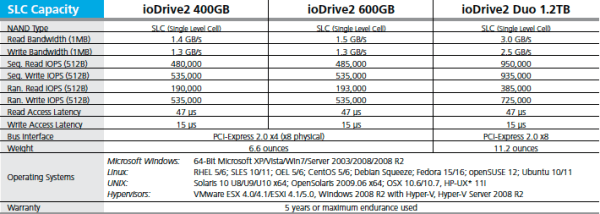
Note: You can have up to 8 of these cards in a system and I’m told the performance will scale almost linearly. That would be good, as you’d need 8 of these cards to get close to reaching the IO performance limits of a single vSphere 5 host!
In my case I only had one card in each system, and even with a single card the performance was good. But it was nowhere near what the marketing numbers suggest, even when using 512B IO size. I will explain my theory as to why this is when I show you the results below.
Before we get to the details of the performance and my test setup I have a complaint. Why publish IOPS figures with a 512B IO Size!? It’s completely useless and completely meaningless. Just because it makes the numbers look big is no excuse. It would be much better to publish figures using an IO size of a typical workload, such as 4K or 8K. But just publishing an IOPS number by itself is also completely useless and of no value. There are a number of other parameters that are required before any of the numbers are of any value whatsoever. To save me from doing a full explanation on this topic I would like to strongly recommend you read the Recovery Monkey article An explanation of IOPS and Latency.
If you are a storage vendor and you actually want to have credibility with your performance figures how about putting in the small print somewhere under what conditions the figures were produced and make the testing of a size and type that is of some value. Unsubstantiated marketing numbers should be met with immediate and severe skepticism from everyone. Ok enough complaining.
For the testing I used two of the Dell T710 Westmere X5650 (2 x 6 Core @ 2.66GHz) based systems from My Lab Environment, each with 1 x ioDrive2 1.2TB Fusion-io card installed in an 8X Gen2 PCIe slot. I configured the cards as a standard VMFS5 datastore via vCenter with Storage IO Control disabled. I installed the IO Memory Fusion-io VSL driver for the ioDrive2 on both of these hosts. The hosts are running the latest patch version of ESXi 5.0 build 768111, vCenter is version 5.0 U1a (U1b has just been released).
I used a single Windows 2008 R2 64bit VM and a single Suse Linux Enterprise Server 11 SP1 VM for the tests. Only one VM at a time was active on the datastore. Each VM was configured with 8GB RAM, 6 vCPU’s, and 4 SCSI Controllers, one for the OS vmdk and the others for the IO Test VMDK’s as depicted in the diagram below. The Windows 2008 R2 VM used LSI Logic SAS for it’s OS disk, whereas the SLES VM used PVSCSI for all disks. IO Load was only placed on the IO Test disks during my testing.
Notice in the diagram above I’m using Thin Provisioning for all of the VMDK’s and all of this is going through a single VMFS5 datastore. So if anyone tries to tell you there is a performance issue with Thin Provisioning or VMFS datastores you can point them to this example.
To generate the IO load I used the VMware fling from VMware Labs IOBlazer. It was very easy to deploy and use and offers a full range of the normal IO testing capabilities you expect, with the additional advantage of being able to replay IO patterns recorded using vscsistats. In my testing I used standard random and sequential read and write IO patterns of varying sizes. In each test I used 12 worker threads (one for each disk). With the exception of the 1M IO Size test where I used 1 outstanding IO, I used 4 outstanding IO’s per worker thread. I did this to limit the amount of IO queueing in the vSphere kernel due to the very small queue depth on the Fusion-io card discussed next. As a result queuing in the kernel was kept to a minimum to ensure the best possible latency results.
Fusion-io Device Queue Depth Limits Performance
The device queue depth for the Fusion-io card was limited to 32. I did try some unsupported tweaks on my hosts to try and increase it to 255 but they were not successful. This is a limitation in the Fusion-io driver and this is very likely to have had a very large impact on the performance results. Don’t get me wrong, the results are still good, but they could well have been much, much better. At a minimum this would have drastically limited the amount of IOPS I can drive through the Fusion-io card. I have raised a feature request to have this configurable up to 255. When I get an updated IO Memory driver I will retest and share the updated performance results.
So why did I test with only a single VM at a time?
Because I knew a single VM would be able to saturate the Fusion-io card based on VMware’s benchmarks for vSphere 5 and discussions I’d had with Fusion-io. Especially during the random read tests we were only expecting up to 100K IOPS, which is well within the capabilities of a single VM in vSphere 5. I did run a couple of tests, just to be sure, with two VM’s going on the same Fusion-io ioDrive2 backed datastore. The overall performance was the same as with a single VM. So at that point I decided doing lots of different combinations of tests with multiple VM’s really wasn’t going to be very valuable.
During VMware’s 1M IOPS Benchmark (using 8KB IO Size and ~ 2ms latency) they noted a single VM could sustain more than 350K IOPS. Based on this and my own testing I was confident the hypervisor wasn’t going to be a bottleneck. The results as you’ll see shortly demonstrate vSphere 5 is capable of supporting almost any application IO workload thrown at it, provided the storage infrastructure is up to the task.
Disclaimer
The IO patterns I tested are not application realistic and do not demonstrate the mix of IO patterns that you would normally expect to see in a real production environment with multiple VM’s or different types sharing a datastore. The tests are for the purpose of demonstrating the limits of the Fusion-io ioDrive2 card when used at peak performance with four different fixed IO patterns. I tested 100% read 100% random, 0% read 100% random, 100% read 0% random, and 0% read 0% random. In real production workloads (shared datastore different VM types) you would not normally see this type of IO pattern, but rather a wide variety of randomness, read and write, and also different IO sizes. Except in the cases where one VM has multiple datastores or devices connected to it (big Oracle or SQL databases), in which case some of these patterns may be realistic. So consider the results at the top end of the scale and your milage may vary.
Read IOPS and Latency
This graph displays the Read IOPS and latency for the different IO sizes tested. Linux was leading the way on both IOPS and latency right up until the 16KB IO size test. Latency didn’t even go above 1ms until the 64KB IO size test. Almost 100K random IOPS at 4KB and 8KB for both Windows and Linux is not bad from a single VM, especially at less than 1ms latency! If the device queue depth was 255 this is where I would have expected to see much higher IOPS as I would have been able to make full use of the larger queue depth without significantly impacting latency.

Read Throughput
This next graph displays the Read Throughput (MB/s) for each of the IO sizes tested. My tuned SLES VM has a slight advantage up unti 32KB IO size, at which point it’s almost a dead heat between the SLES and Windows VM’s. Based on the graph above and below you can see that at 16KB IO size you would be getting over 1200MB/s at under 1ms latency and over 80K IOPS on a single VM.

Write IOPS and Latency
This graph displays the Write IOPS and Latency for the different IO sizes tested. Latency creeped up above 1ms during the 32KB IO size tests. With the exception of random writes on Linux the IOPS performance up till 16KB was over 100K consistently. Again I would have expected much higher IOPS if the device queue depth could have been adjusted up to 255 as I would have been able to make full use of the larger queue depth without significantly impacting latency. Again very good considering this is a single VM and latency is remains below 2ms except with the 64KB and 1MB tests.

Write Throughput
This next graph displays the Write Throughput (MB/s) for each of the IO sizes tested. I hit the throughput saturation point during the 16KB IO size test and it was pretty much a flat line for the subsequent tests.

Based on the list retail prices for ioTurbine and ioDrive2 devices I think these cards are exceptionally good when you compare price for performance and against other options. If you look at the price of an enterprise SSD of a similar size the Fusion-io cards will be slightly cheaper, but offer so much more performance and functionality. If you look at the IOPS and throughput how much would you need to spend to get this out of your SAN?
These tests have really only just scratched the surface of the capabilities of these cards. When used as an IO cache for VM’s, which still allows vMotion to work, the combination of price, performance and functionality in my opinion is very strong. I’m very much looking forward to performance testing the ioTurbine software and posting an article about that, as well as a business case and real business benefits of it.
Although the workloads tested were not very realistic for most applications they give you a good benchmark of the capabilities of the Fusion-io ioDrive2 1.2TB MLC cards. At least this should give you a more realistic idea compared to the marketing numbers in the case you are using these cards as a datastore. The marketing numbers may be achievable with a VM if the device queue depth wasn’t such a limiting factor. These results also demonstrate the excellent performance of a single Windows and Linux VM at such low latency. This is just further proof that the vSphere hypervisor is not your storage bottleneck. Remember a single vSphere host has been able to do 100K IOPS since v3.5, and a single VM could do 100K IOPS in vSphere 4, with vSphere 5 a single VM can do over 350K IOPS and a host can do 1M IOPS. There was also no performance problem experienced due to use Thin Provisioned VMDK’s for the VM.
I see great use cases for Fusion-io cards as a datastore with VDI (Virtual Desktop) type workloads backing floating desktop pools, for databases that are replicated for protection (Oracle DataGuard / SQL Mirroring), and any network cluster based application that needs local persistent storage. But for performance and VM mobility you can’t go past ioTurbine, the results of which I will share with you when I’ve tested it.
I recommend you read the article I wrote regarding VMware’s 1M IOPS Benchmark vs Microsoft’s 1M IOPS, and also An explanation of IOPS and Latency. Download IOBlazer and give it a try. If you record the IO statistics from your hosts using vSCSIStats then you can replay them in IO Blazer and do some very realistic IO benchmarking and testing.
Josh Odgers has also just written up an article where he’s tested the Fusion-io ioDrive2 cards on Older IBM 3850 M2 system – FusionIO IODrive2 Virtual Machine performance benchmarking (Part 1), it’s definitely worth a read. There is also an article on Who needs a million IOPS for a single VM, which has been published after VMware’s recent vSphere 5.1 performance results – 1 Million IOPS on 1 VM.
I hope you’ve found this useful. As always I greatly appreciate your comments and feedback. I hope to meet a lot of you at VMworld US and Europe.
—
This post first appeared on the Long White Virtual Clouds blog at longwhiteclouds.com, by Michael Webster +. Copyright © 2012 – IT Solutions 2000 Ltd and Michael Webster +. All rights reserved. Not to be reproduced for commercial purposes without written permission.
One of the features many people may not be aware of that was released in vSphere 5 is Multiple-NIC vMotion. This is a feature that allows you to load balance a single or multiple vMotion transmissions over multiple physical NIC’s. This is of significant benefit when you’ve got VM’s and hosts with large amounts of memory, as vMotion migrations will complete significantly faster. So your Business Critical Applications with large amount of memory and CPU’s can now migrate without disruption even faster. Below I’ll briefly cover the good and great of this technology and also a gotcha that you need to be aware of.
The Good
I thought we’d start with the good news. With vSphere 5 you can now split single or multiple vMotion streams over multiple NIC’s. Up to 4 x 10Gb/s NIC’s or 16 x 1Gb/s NIC’s are supported. This magnifies even further the already impressive 30% improvement in vMotion performance vs vSphere 4.1.
The Great
It is super easy to set up multi-NIC vMotion. It’s all explained in KB 2007467. To briefly cover the set up.
That’s it.
Very simple. Now single vMotion’s and multiple concurrent vMotions will be load balanced over the NIC’s. There is absolutely not need to configure any complicated LACP or IP Hash load balancing to make this work, there is no need to use Load Based Teaming (Route based on physical NIC load). You can use this with standard switches, no need for distributed switch. It doesn’t even require Enterprise Plus licenses, but as the benefits are mostly with VM’s and hosts with lots of RAM you’re probably going to have Enterprise Plus anyway.
I tested performance of Multi-NIC vMotion with 2 x 10Gb/s NIC’s in my home lab and got almost 18Gb/s when using Jumbo Frames on vSphere 5. Hosts go into maintenance mode so fast you better not blink! I haven’t retested Multi-NIC vMotion again since upgrading to vSphere 5 U1 and the latest patches. I plan to test it when Update 2 or the next vSphere release comes out.
Here is the test results from my previous article. You can see the Multi-NIC vMotion Test at the bottom – vMotion 2 x 10G.

The Gotcha
There is a condition that may occur during long running vMotion operations that could cause all hosts ports configured for vMotion to be flooded with the vMotion traffic (on vSphere 5.0 prior to Update 2). The way I understand it this occurs when physical switches MAC tables start timing out the MAC’s (before the ARP timeout). The reason it occurs is because although the outbound traffic is split over multiple vmkernel ports and multiple NIC’s the ACK’s coming back from one MAC. So after a while the physical network may time out the other MAC’s as it’s not seeing any traffic from them. As the transmissions are still occurring the switches may start flooding every port that is configured for the vMotion VLAN. Because the problem is generated by MAC timeouts around the 5 minute mark you will be more likely to experience this problem with 1G vMotion NIC’s or with 10G vMotion NIC’s that have Network IO Control or QoS limits imposed, as your migrations will generally take longer.
To work around this problem you may be able to adjust the MAC timeout values on your switches, depending on the type of switches you’ve got. The default MAC timeout on Cisco switches is normally 5 minutes. On the Dell 8024 10G Base T switch I’ve got in my lab the Address Aging value defaults to 301 seconds and is adjustable. Be careful if you choose to adjust these values as there may be other consequences, any adjustments should be tested, and only applied to the switches connecting directly to your vSphere Hosts carrying the vMotion VLAN.
VMware is aware of this problem and is working on a fix has released a fix as part of vSphere 5.0 U2. The fix didn’t make it into ESXi 5 Patch 03 that was released on 13/07/2012 (07/12/2012 for those in the USA). I would hope that it makes it into the next vSphere 5 update release. I will have updated this article when now the problem is fixed, and let you know what patch or updates you need to apply. Until then I hope you are able to make use of Multi-NIC vMotion by applying the above workaround. At least configure it in your test environments and see how it goes.
Update (20130103): This issue is fixed on vSphere 5.0 U2. All you need to do is update your hosts to 5.0 U2 and this problem will be resolved. The workaround is no longer necessary.
I have just posted a workaround to this Gotcha in an article Workaround for Multi-NIC vMotion Unicast Flooding in vSphere 5. This workaround however is unsupported. So use at your own risk. It appears to work well on vSphere 5.0, 5.0 U1, and should work with 5.1 GA but hasn’t been tested.
Final Word
If you thought vMotion in vSphere 5 was already fast you ain’t seen nothing yet, till you’ve experienced Multi-NIC vMotion. Even with this slight gotcha it still has some benefits if you can apply the workaround in your environment. Especially with very large VM’s >96GB RAM, and large hosts >256GB RAM, it will significantly help your migration times.
Duncan Epping at Yellow Bricks has done a follow up article on this titled Clearing up a misunderstanding around CPU throttling with vMotion and Multi-NIC vMotion in vSphere 5. I would highly recommend that you read it. As noted in the comments on this article this should not be kicking in under normal circumstances and will only kick in if the vMotion would have otherwise failed. I’ll let you read Duncan’s article for the full story.
This article is also posted at the VMware Blog Site – Support Insider.
—
This post first appeared on the Long White Virtual Clouds blog at longwhiteclouds.com, by Michael Webster +. Copyright © 2012 – IT Solutions 2000 Ltd and Michael Webster +. All rights reserved. Not to be reproduced for commercial purposes without written permission.
One of my fellow vExperts, Prasenjit Sarkar, has recently published a blog article titled Virtualizing BCA – What about application IO characteristics. I recommend that you take a look at this as it gives a good overview of a lot of the considerations around storage for Business Critical Applications. There are a few things I feel are also important over and above what is mentioned in the article and these may have a significant impact on your architecture design and application performance. Here I’ll cover some things you must consider to provide a solid storage design to support your most critical systems.
I will cover off each of the topics in Prasenjit’s article in the order he wrote them to make it easier to follow. Prasenjit has done some great work and my objective for this article is to add to that.
Randomness of IO
The randomness of IO is a very important consideration in storage design. Most virtualization environments will generate a completely random IO pattern even with sequential IO from individual VM’s. This is because the underlying VMFS datastores are shared between multiple VM’s in most cases. With business critical apps you will have cases where VM’s should or will still share some common VMFS datastores. The only way to have any chance of sequential IO is to have dedicated VMFS datastore for a single VMDK or to use RDM’s for your guests. RDM’s will limit your flexibility and there is not performance difference between RDM and VMFS, so VMFS should be the preferred option in most cases. As soon as you add a second VMDK to the VMFS datastore you increase the chances that your IO pattern will be random and not sequential. My advice would be to plan your storage subsystems with a 100% random IO pattern in mind and design the storage layout of your VM’s to share VMFS datastores intelligently when possible, and have necessary separation for performance where required. I would suggest you only use RDM’s if you need a particularly large single volume (>2TB in vSphere 5), or you want to be able to swing between physical and virtual.
Read/Write Bias
Be very careful around your read and write bias calculations and percentages. Just because an application generates a read biased workload doesn’t mean the underlying storage system will see a read biased IO pattern. The reason for this is Application cache and OS filesystem cache is likely to mask a lot of read IO if you have sized your guests correctly. This will mean your IO patterns may be very write biased. You will need to make sure you have sufficient write cache so you don’t get into a position of a force flush and a subsequent instance of the cache going write through which will significantly degrade performance. You must have sufficient physical devices in the array to handle the cache flushes easily. Be very careful when using SATA disks on an array without automated storage tiering. Overloading a SATA LUN can cause forced flush and significant periods of array cache write through, to the point where the storage processors may appear to freeze and you may find LUNs being trespassed on active/passive arrays, or just lots of path flip flops on active/active arrays.
There is a direct trade off between Read IO’s hitting your array and memory assigned to your guests used for application and filesystem IO cache. So you should assign sufficient memory to your guests to balance the IO workloads. You should at all times attempt to avoid OS swapping. Swapping will have an immediate and direct impact on your storage and your application performance. You will want to use reservations on your guests to limit the likelihood of swapping at the vSphere host level, and also at the guest OS level. It may be acceptable during a host outage to have some swapping and slightly degraded performance. You should very carefully consider the business requirements and the impacts of sacrificing guest level caches during host failure events, your reservation levels on your guests, your memory assignments, to get the best balance of performance, risk and cost, even when things go wrong.
Fixing a read IO problem is in a lot of ways harder than fixing a write IO problem as with reads where it goes to the physical storage subsystem it must spin the disks to read the data out in most cases. This is due to the very high percentage of read cache misses on the array due to the randomness of the IO patterns. In most cases it’s not worth in my opinion having any cache assigned to read at the array level, and instead having it all assigned to write. Write peaks and micro bursts can mostly be handled with the write cache, and then be trickled down to the physical disks.
One way of sorting read IO without assigning huge amounts of memory to your hosts is by using local shared host cache and acceleration technology such as Fusion IO cards. Fusion IO cards are oem’d by all the big name brand server vendors. So check with your server vendor and your Fusion IO team for more information. Deploying local host caching technologies like Fusion IO can allow you to consolidate more workloads on your servers with less assigned memory. Instead of assigning lots of memory to your guests for IO cache you essentially offload this to the Fusion IO card, which is much more cost effective per GB, but not as high performance as RAM. It will be a balancing act and you will need to test it. I will be testing Fusion IO’s technology with Oracle RAC systems running on SLES 11 SP1 over the next couple of weeks and will blog about it. Fusion IO cards when used as cache will be write through and are only used as cache for reads. This is important for data integrity. The system will also keep operating perfectly fine if the card fails, although at less performance. So consider card failure in your design and plans and how you’ll handle that if you choose to go down this path. If the card fails all the IO’s that the card would have serviced will immediately start going directly to the storage.
Important Note: The write biased nature of workloads is incredibly important to understand and consider to achieve the optimal storage design. I can’t emphasize this enough. This also applies to VDI workloads (not just server workloads), which I also class as business critical applications, as VDI is also generally very write biased.
Spindle Count, IOPS and Capacity Calculations
My general philosophy when it comes to sizing storage when virtualizing business critical applications is to size for performance first, and generally capacity will take care of itself. If you just look at capacity you will find that most of that capacity is simply unusable from a performance perspective. Find the storage solution that best balances capacity and IOPS and that meets your latency requirements. Wikipedia has a great page on IOPS, it’s definitely worth checking this out also.
In some cases you may find adding in smart local host cache or acceleration technology, or using SSD in the storage arrays can actually save you a lot of money. The reason for this is that you can deploy much fewer devices, that consume much less power and cooling, are easier to manage, to meet your performance requirements. Individually compared to their spinning rust counterparts the SSD’s may cost significantly more, but because you need so few of them to meet your performance they can be very cost effective. In the case study that Prasenjit presented it may have been possible to meet the performance requirement with a single SSD, but as that wouldn’t provide the capacity or redundancy you’d need a few more. The lifespan of enterprise SSD’s is sufficient these days so it is no issue, and the cost is coming down all the time. SSD’s are becoming a very common technology in enterprise storage environments. To get the capacity requirements for the case study or 1TB you could have deployed 4 SSD’s in a RAID 5 – 3+1 configuration (very common with SSD’s).
From a pure cost perspective SSD could be between 7:1 and 10:1 when compared to SAS or FC disks of similar size. However in my example above this would still have produced a significantly cheaper solution. For the cost of only 28 – 40 spinning rust devices you would have got significantly more performance than the otherwise required 50 disks to meet the performance requirements from Prasenjit’s case study. You would also significantly exceed the latency requirements using SSD’s when compared to SAS or FC.
IO Request Size
Just because an application produces an 8K IO request doesn’t mean the storage array sees an 8K IO request. This is because the Guest OS will most likely try to order and combine the IO’s to achieve better performance. With Linux the best IO scheduler to choose in a virtualized environment is NOOP or No Opperation. This will simply order and group the IOs without delaying some IOs like other schedulers do to attempt to get better performance. The simplest scheduler is the best due to the multiple layers of the storage IO stack and the multiple layers of virtualization that are commonly in the environment. The other IO schedulers were designed for a time when direct attached disks were common and even when single disks were used.
Important Note: The vSphere Hypervisor doesn’t try and order or group IO’s. It will just spit them out to the HBA driver / storage as they are received, and in the size they were received from the Guest OS’s. Also very important to note is that vSphere does not itself do any caching. This is to ensure data integrity.
Other Things to Consider

Final Word
Three maxims of cloud apply to this just as with most things. Hardware fails, people make mistakes and software has bugs. You need to plan and design for all of this. You owe it to your applications to take a very methodical and carefully thought out approach to storage design to ensure their performance and availability requirements are met. The time taken in the storage design is justified due to the critical nature and impact of these business critical systems. This type of design effort should be no less than you would have applied had this system been deployed to a native OS/Hardware combination. The benefits you will gain by virtualizing and consolidating multiple workloads with thought and care will far outweigh the cost of doing the design properly the first time, rather than trying to do it over if you run into a major issue.
If you are going to have databases or systems with large disk footprints (and have multiple per host) you may need to modify the ESXi VMFS Heap Size by changing the advanced setting VMFS3.MaxHeapSizeMB. Review KB 1004424 and Jason Boche’s article Monster VMs & ESX(i) Heap Size: Trouble In Storage Paradise.
If the business critical application you are virtualizing is Oracle then check out my other articles on virtualizing Oracle. Deploying Enterprise Oracle Databases on vSphere is especially relevant to deploying business critical Oracle databases and the associated vSphere design considerations, including some nice design diagrams.
For additional information on virtualizing Oracle visit my Oracle Page.
—
This post first appeared on the Long White Virtual Clouds blog at longwhiteclouds.com, by Michael Webster +. Copyright © 2012 – IT Solutions 2000 Ltd and Michael Webster +. All rights reserved. Not to be reproduced for commercial purposes without written permission.